
Cart page
WooCommerce supports two types of cart pages: the classic cart built on a shortcode, and the Block Cart based on Gutenberg blocks. WoodMart is compatible with both, but the setup of the two carts has its differences.
Classic cart and Block cart
Classic Cart – this is a page with the [woocommerce_cart] shortcode. The cart table and the totals are rendered by WooCommerce and theme templates, and it supports hooks and custom layouts.
Block Cart – this is a page with the Cart block in the Gutenberg editor. It’s a separate implementation based on the Store API.
Overview comparison
| Classic Cart | Block Cart | |
|---|---|---|
| Layout setup | Via WoodMart Layout Builder | Inside the cart block |
| Design options location | In Theme Settings → Shop → Cart | Inside the cart block |
| Free gifts, Free shipping bar, Estimate delivery | Enabled in Theme Settings | Enabled in Theme Settings and added as blocks |
Switching between cart types
- Check which page is assigned in WooCommerce → Settings → Advanced.
- On that page, replace the Cart block with the
[woocommerce_cart]shortcode or the Classic Cart block, or vice versa.
Setting up the classic cart
Checking the page type
Open the Cart page in the editor. If it contains the [woocommerce_cart] shortcode rather than a Cart block, the classic cart is active. If neither is present, add the shortcode.
Cart design options
The Theme Settings → Shop → Cart section contains options for the page design. These options apply only to the shortcode page. If your cart page uses the Cart block, a notice at the top of the section informs you that the options have no effect.
- Cart totals layout: two design variants for the cart totals block.
- Update cart on quantity change: the cart is refreshed automatically when the customer increases or decreases the product quantity, so the Update cart button is not needed.
- Empty cart text: the message displayed when the cart contains no products.
One more related option is located in the SKU group of the Theme Settings → Shop → Shop section: Show SKU on cart page adds the product SKU to the cart table.
Creating a custom cart layout
Two layout types are available: Cart for the regular cart and Empty cart for the state when the cart contains no products.
- Go to Dashboard → Layouts → Cart and click Add new.
- Choose the layout type and enter a name.
- Click Create layout.
- Add the needed elements and publish the layout.
Learn more about working with the Cart Layout Builder documentation.
Setting up the block cart
Enabling the block cart
- Check which page is assigned in WooCommerce → Settings → Advanced.
- On that page, add the Cart block.
Editing the layout and options
The layout and options of the Block Cart are configured directly in the Cart block: by clicking on each corresponding inner element of the cart. Options from Theme Settings → Shop → Cart do not apply to the block cart.
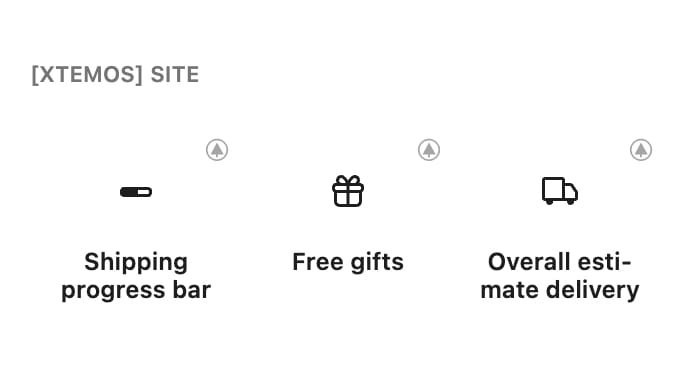
For options like Free gifts or the Free shipping progress bar, you first need to enable the relevant option in Theme Settings, and then add the corresponding block to the page.
Cart layouts and the block cart
A Cart layout created in the Cart page builder (Dashboard → Layouts → Cart) replaces the content of the cart page once it is published, including a page built with the Cart block. To display the Cart block, keep the Cart layout unpublished.
Cart features
These WoodMart features are configured in their own Theme Settings sections and are displayed on the cart page.
- Free shipping progress bar: enable it and turn on the Cart page location. On the block cart, add the Shipping progress bar block.
- Free gifts: enable the feature and turn on the Cart location. On the block cart, add the Free gifts block.
- Estimate delivery: turn on the Cart page location to show the delivery date for each product. The overall delivery estimate is displayed in the cart totals on the classic cart; on the block cart, add the Overall estimate delivery block.
- Cross-sells: products linked in the Linked Products → Cross-sells tab of the product.
When a custom Cart layout is published, the free gifts table and the shipping progress bar are no longer inserted automatically – add the corresponding elements to the layout instead.
Don’t miss WoodMart updates
Receive feature updates, tutorials, and WoodMart news via email.
 Last updated: September 23, 2026