
Use custom header icons
Many Header Builder elements can replace their built-in icon with an image from the WordPress Media Library. Supported elements include Cart, Wishlist, Compare, Search, Mobile search, Account, Mobile menu, Categories, Main menu, and Sticky navigation.
Upload a custom icon
- Edit the required header element.
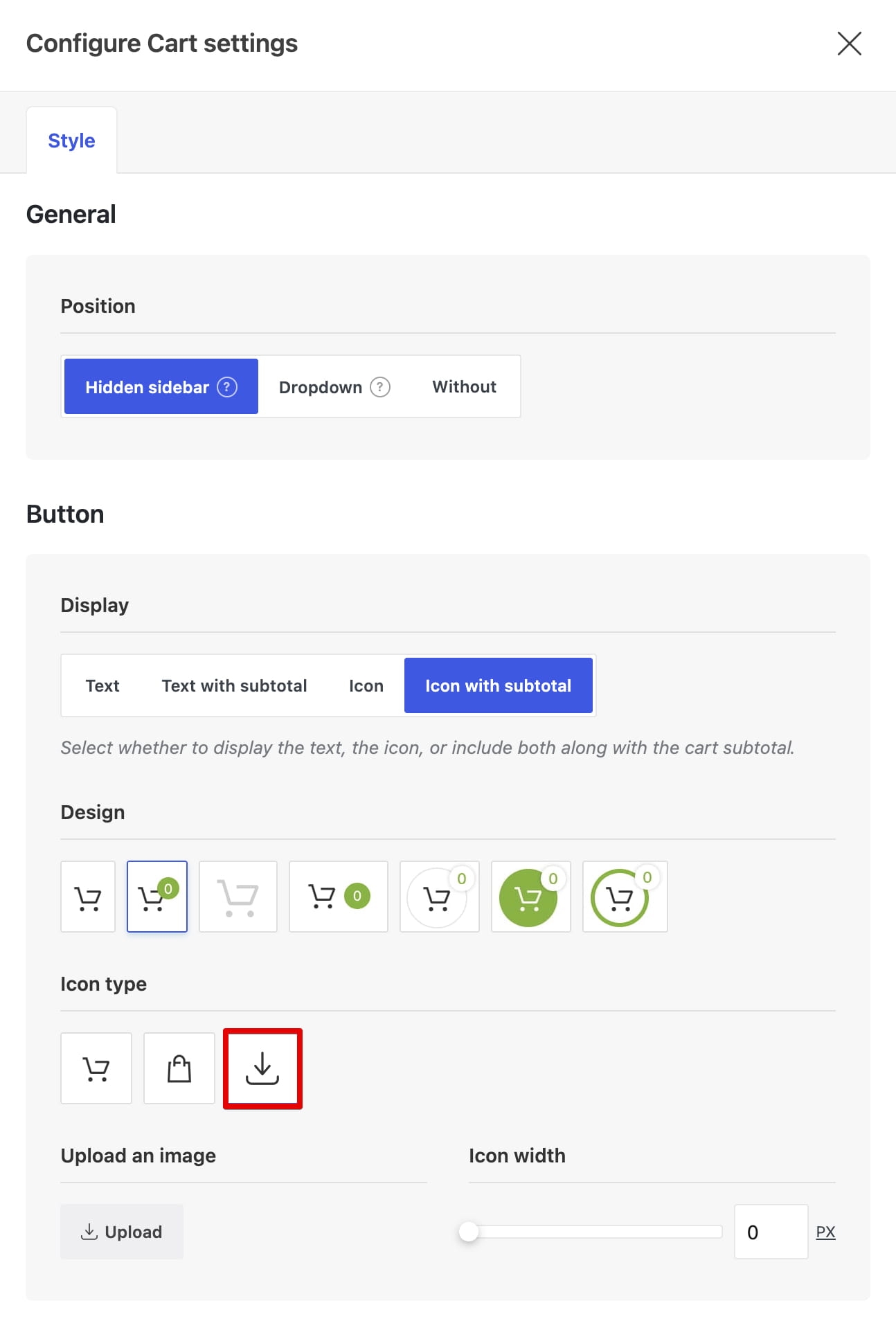
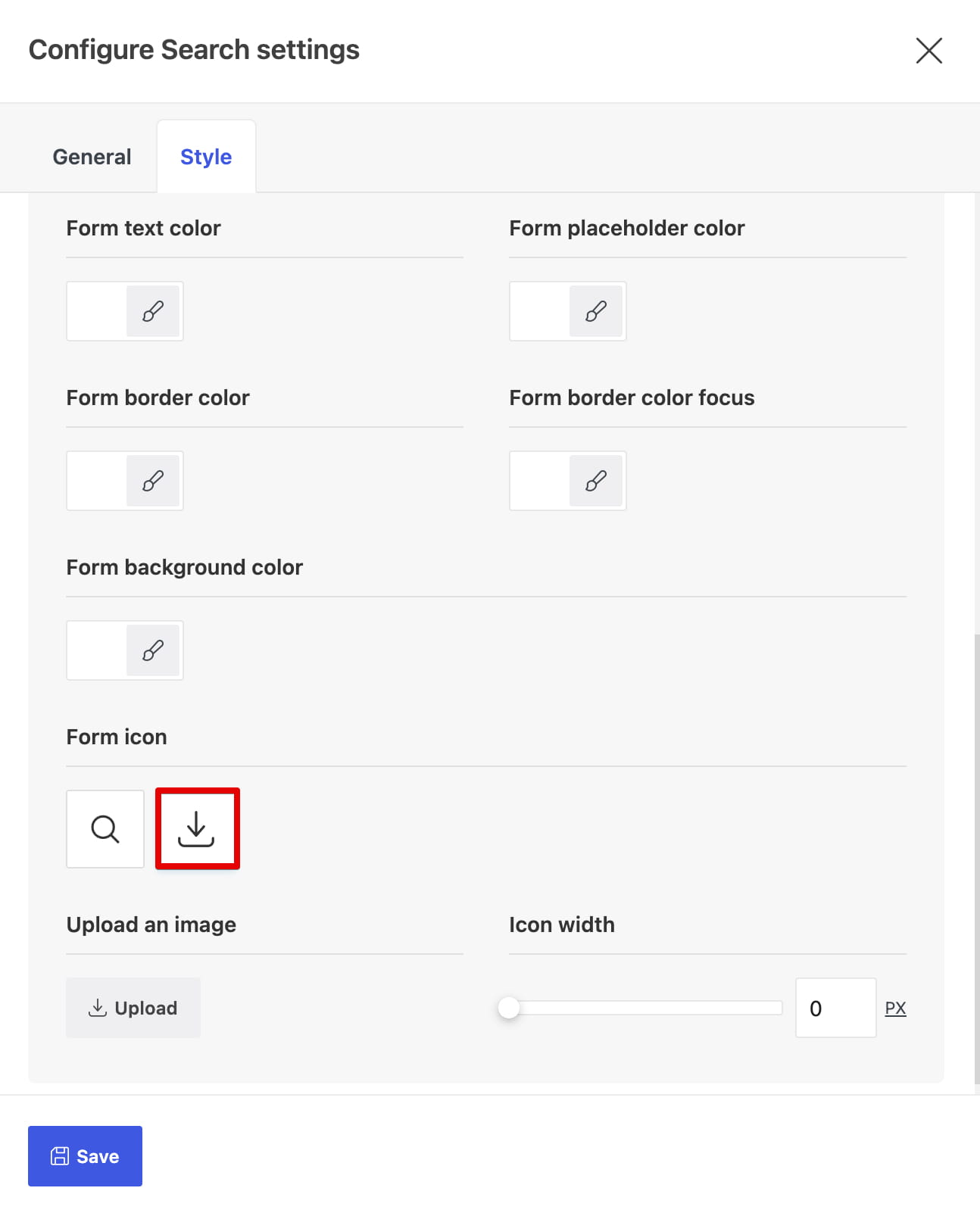
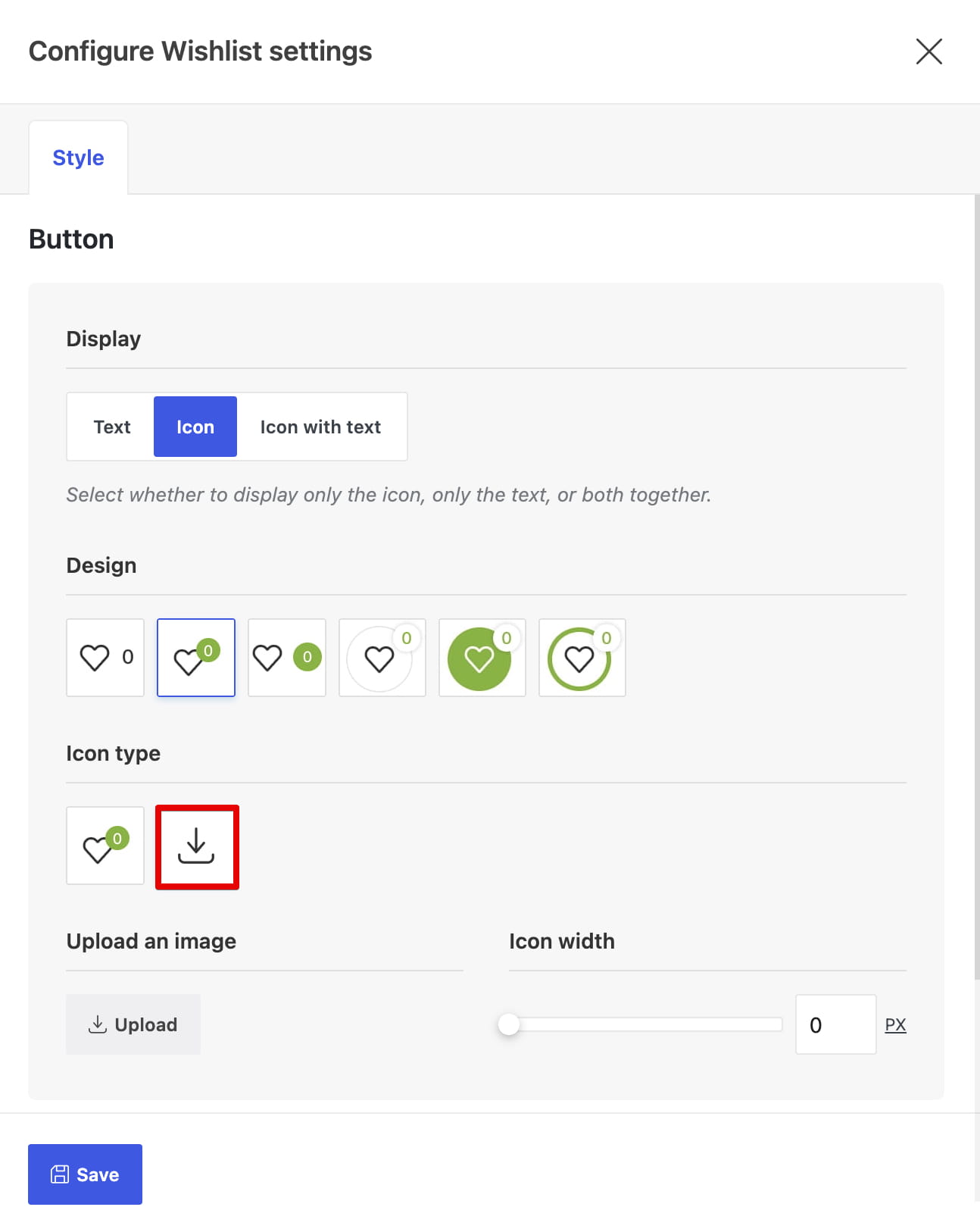
- Open its Style settings and locate Icon type.
- Select Custom.
- Use Upload an image to choose the icon.
- Adjust Icon width when this option is available, then save the header.
Use an image format accepted by the WordPress Media Library. SVG files can be selected only when SVG uploads are enabled on the website.
Cart example
Search example
Wishlist example
 Last updated: August 7, 2026